Networking Pulse | Technical Tips | Hands-on FortiGate 60F lab | Updated November 2026
FortiGate administrator login disclaimers display an access notice before or after authentication. In our Networking Pulse lab, we enabled both banners on a FortiGate 60F running FortiOS 7.4.7 and documented the results in the web GUI and SSH. This guide shows the exact commands used, what administrators see, and how the settings relate to CIS FortiGate hardening recommendations.
Lab environment and tested firmware
This walkthrough uses a Fortinet FortiGate 60F, hostname HOU-LAB-FGT-01, running FortiOS v7.4.7, build 2731 (GA.M). The version screen identifies the firmware as FortiGate-60F v7.4.7,build2731,250120 (GA.M). The device is a lab firewall, not a claim that the procedure was tested on every FortiOS release.

What is the FortiGate administrator disclaimer?
FortiOS provides two global administrator banner settings: pre-login-banner and post-login-banner. These notices apply to firewall administrative access, rather than user captive portals. The pre-login notice is presented before authentication is completed; the post-login notice is presented after successful authentication and must be acknowledged to continue.
| Setting | Purpose | Where observed |
|---|---|---|
| pre-login-banner | Warn before authentication | SSH, after username entry |
| post-login-banner | Require notice acknowledgment after login | GUI and SSH |
Step 1: Open the FortiGate CLI console
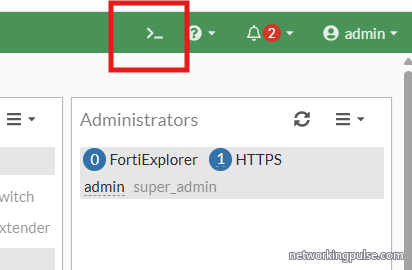
Sign in using an authorized administrator account, then open the CLI console from the FortiGate GUI. Alternatively, use a secure SSH administrative session. You need privileges to change global system settings.
Step 2: Enable both administrator disclaimers
We applied the following configuration on HOU-LAB-FGT-01. These are the actual CLI settings shown in the lab screenshot:
config system global
    set pre-login-banner enable
    set post-login-banner enable
end
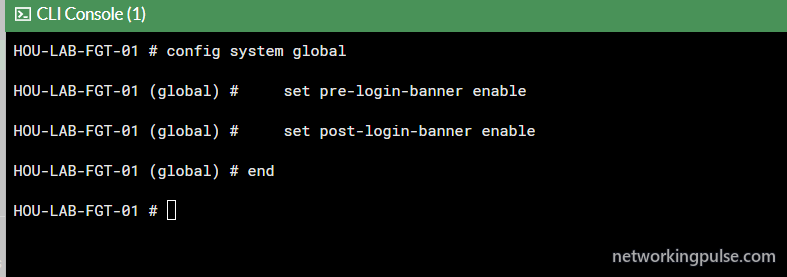
You can enable either banner independently by applying only its corresponding set command. For a production firewall, agree on the notice wording with the appropriate organizational stakeholders, including legal counsel where applicable.
Step 3: Check the GUI disclaimer
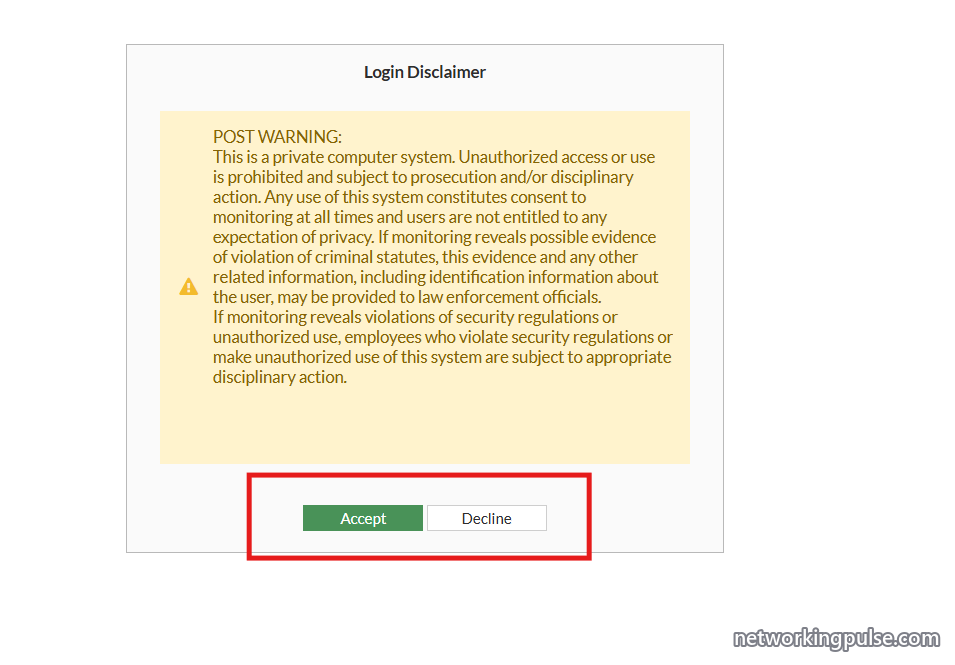
The web management interface displayed the Login Disclaimer dialog with the default POST WARNING text and Accept and Decline buttons. This confirms the post-login disclaimer as shown by the screenshot. Do not assume the screenshot alone proves a separate GUI pre-login screen.
Step 4: Check the SSH pre-login notice
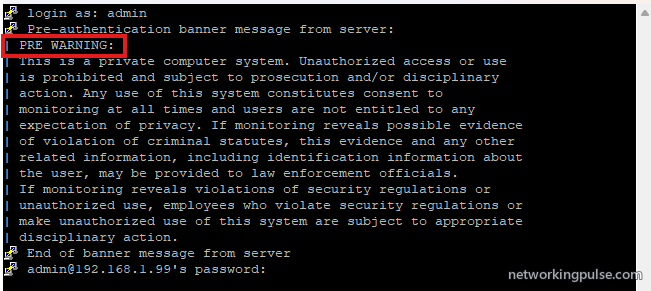
During SSH access, after the administrator username was entered, FortiGate displayed the PRE WARNING message before the password prompt. This matches the pre-authentication behavior visible in our lab.
Step 5: Check the SSH post-login notice
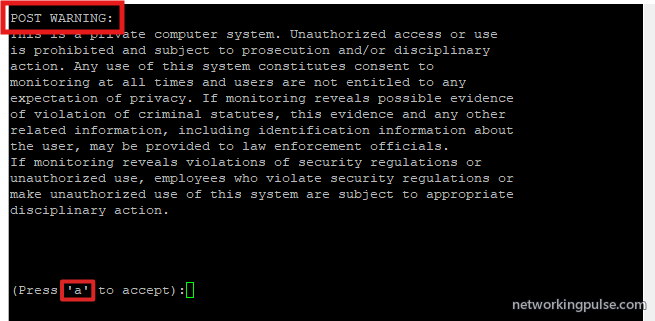
Following successful SSH authentication, a separate POST WARNING message appeared. The console prompted us to press a to accept the disclaimer and proceed. Interactive acknowledgment can affect automated administration scripts and tools that expect an immediate CLI prompt.
How to verify or reverse the settings
To inspect the configured values, run get system global and find the pre-login-banner and post-login-banner entries. The expected values after this walkthrough are enable. Open new GUI and SSH sessions to validate the user-facing behavior.
To disable both banners if required by an approved change:
config system global
    set pre-login-banner disable
    set post-login-banner disable
end
Security-hardening reference
The CIS FortiGate 7.4.x Benchmark v1.0.1 (2026) addresses these settings in recommendations 2.1.1 (Pre-Login Banner) and 2.1.2 (Post-Login Banner). The lab configuration enables both settings; this walkthrough is not a complete CIS assessment. See the official CIS Fortinet Benchmarks page for benchmark information.
Operational considerations
-
Banner acknowledgments may interrupt scripted or automated administrator login workflows, especially with the post-login banner enabled.
-
A disclaimer is a notice and acknowledgment mechanism, not a substitute for multifactor authentication, trusted administrative hosts, secure management protocols, logging, or access controls.
-
Verify behavior on the exact FortiOS release and management method used in production; this article documents a FortiGate 60F running FortiOS 7.4.7.
Frequently asked questions
What is the command to enable the FortiGate pre-login banner?
Run config system global, then set pre-login-banner enable, followed by end.
How do I enable the FortiGate post-login disclaimer?
Run config system global, then set post-login-banner enable, followed by end.
Does the FortiGate admin disclaimer appear in SSH?
Yes. In our FortiOS 7.4.7 lab, SSH showed a PRE WARNING before the password prompt and a POST WARNING after authentication, requiring the administrator to press a to accept.
Is enabling both banners enough for CIS compliance?
No. They correspond to two specific CIS FortiGate 7.4.x Benchmark recommendations. A complete assessment requires reviewing other applicable benchmark settings and organizational exceptions.