
Use OneDrive for work files you primarily manage yourself. Use SharePoint for files a team needs to find, update, or keep over time. In Microsoft Teams, a file uploaded to a channel goes to SharePoint. A file you upload directly to a chat goes to your work OneDrive.
For a Houston business, the choice gets practical when someone needs to take over a case, a client engagement, or a project. If a teammate should be able to find the file without asking who created it, start in the team’s SharePoint library.
Key takeaways
- Use work OneDrive for individual drafts and short reviews that you’re responsible for.
- Put team projects, approved templates, and business records in designated SharePoint libraries.
- Upload to a Teams channel when the file should live with that channel’s work. For an existing file, share a link to its approved location.
- Check the site or library’s permissions before storing sensitive files or inviting people outside the business.
- Make file handover part of offboarding. Verify access and retention before removing an employee’s account.
SharePoint vs. OneDrive at a glance
This comparison covers OneDrive for work or school and SharePoint in Microsoft 365. Both can store and share business files. Their main difference is where responsibility for those files sits. Microsoft’s file storage guidance recommends using the two together.
| Decision | OneDrive for work | SharePoint |
|---|---|---|
| Where do the files live? | In a workspace tied to one employee’s work account. | In a document library on a team, department, or project site. |
| Who can open them? | Private by default. The user can share files within company policy. | Access usually comes from site or library permissions. Some items may have separate permissions or sharing links. |
| Can people work on the same file? | Yes, when the document supports co-authoring and the people you share with have edit access. | Yes, when the document supports co-authoring and contributors have edit access to the shared file. |
| What belongs there? | A first draft, working notes, or a short review you lead. | Live project files, department templates, approved procedures, and shared business records. |
| What happens when someone leaves? | Deleting the account starts the standard OneDrive retention process. Plan the handoff. | Files stay in the site when their creator leaves. Maintain site owners and verify the team’s access. |
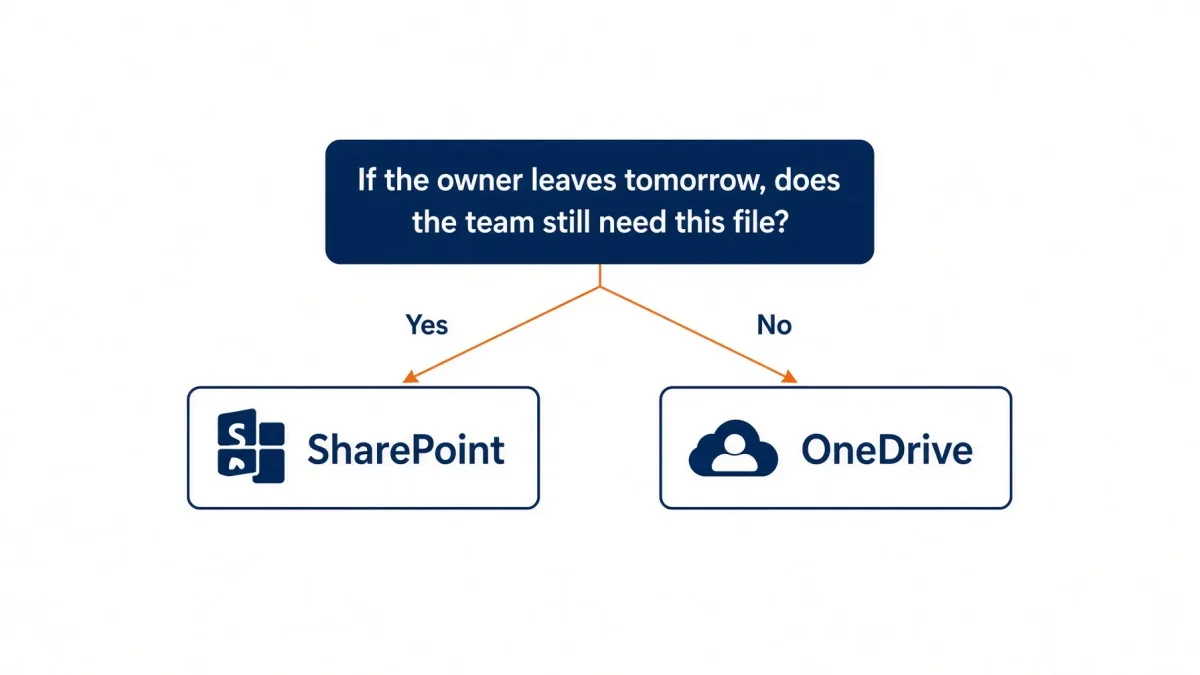
A quick test: if the owner left tomorrow
Ask one question before you save a file: if the person who created it left tomorrow, would the team still need it? If yes, it belongs in SharePoint. If no, OneDrive is fine. A draft can start in OneDrive and move to SharePoint once other people depend on it.
How Houston businesses can use SharePoint and OneDrive
Law firms in downtown Houston
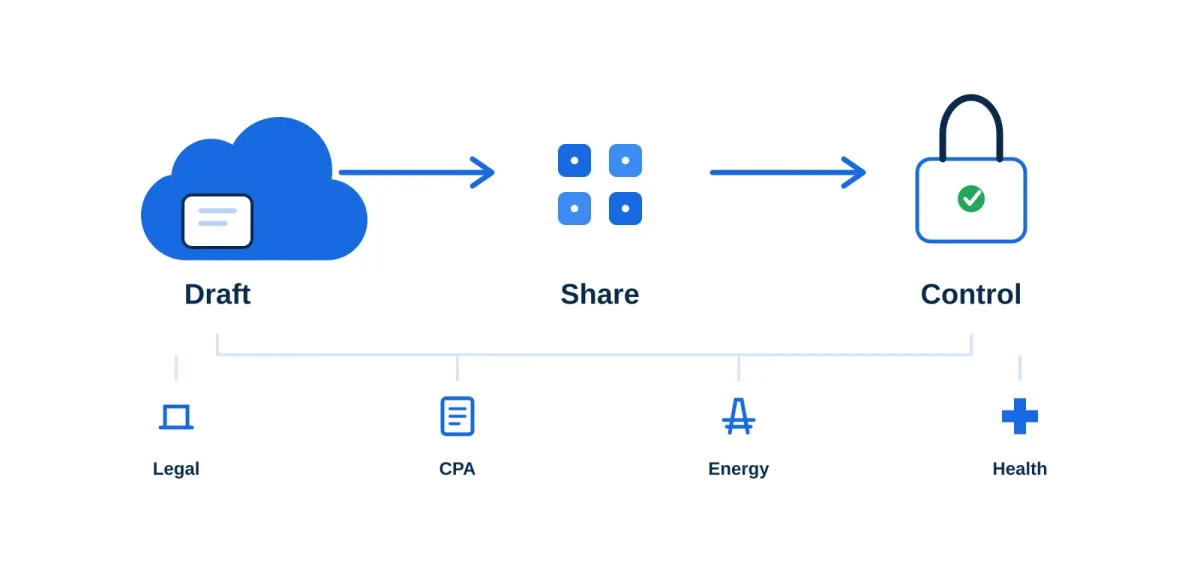
A paralegal can start a scheduling checklist in work OneDrive if firm policy allows it. Keep client correspondence and shared case documents in the firm’s approved matter workspace. If that workspace is SharePoint, use a site or library restricted to the matter team. Send a link to the approved location when another attorney takes over.
Accounting and CPA firms in Sugar Land
A staff accountant can draft a blank reconciliation template in OneDrive. Put the approved template in the team’s SharePoint library so everyone works from the current version. Keep client tax documents in the firm’s approved portal or restricted engagement workspace, with access limited to the people assigned to that client.
Oil and gas services teams in the Energy Corridor
A field supervisor can draft a shift handover in OneDrive if the content is approved for that location. Once the next crew needs it, put the handover in the project’s SharePoint library or upload it to the relevant Teams channel. The Houston office and Gulf Coast crews can then open the same record. Check access before sharing it with a subcontractor.
How SharePoint, OneDrive, and Teams work together
Teams gives staff a place to talk and work on files. The location depends on how the file gets into Teams.
| What you do in Teams | Where the file lives | What to do for shared work |
|---|---|---|
| Upload to a standard channel | A folder in the team’s SharePoint site. | Use the appropriate channel for documents the team maintains. |
| Upload to a private or shared channel | The channel’s own SharePoint site. | Check channel membership and any item-level sharing before adding restricted documents. |
| Upload a new file directly to a chat | The uploader’s work OneDrive. | Save ongoing team files to the approved shared library and send the link in chat. |
| Paste a link to an existing file | Its original OneDrive or SharePoint location. | Check everyone who needs the file can open it. Set the intended link permissions. |
Microsoft explains how standard, private, and shared channels connect to SharePoint. If staff prefer File Explorer, they can add a shortcut to a SharePoint library when available. It gives them another way to open the same files from OneDrive while the files stay in SharePoint.
How to set up file sharing and offboarding in Microsoft 365
Decide who needs the file before choosing a location
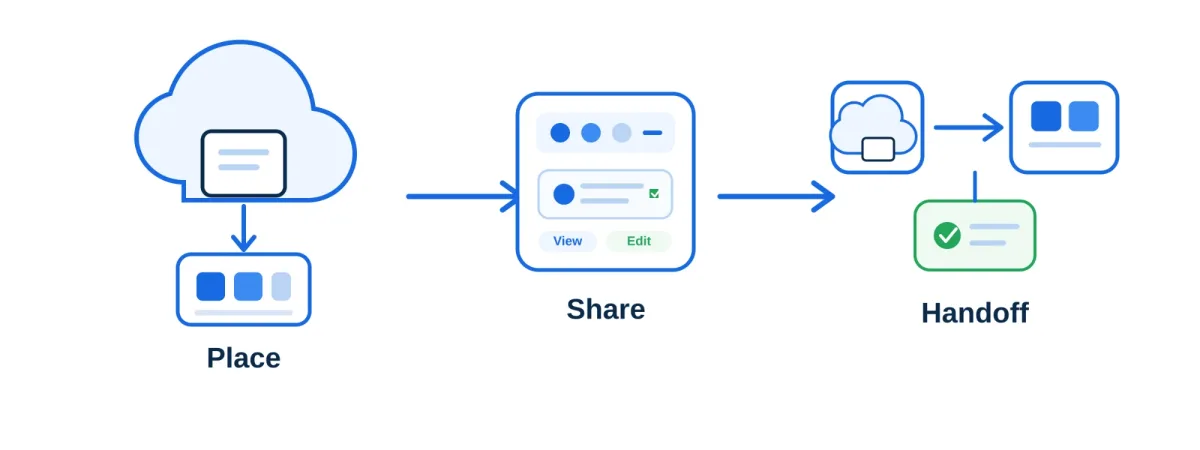
Ask who maintains the file, who needs to open it, and who would take over tomorrow. Create shared documents in the approved library from the start when several people will use them. Give each library a business owner who can confirm membership and decide what belongs there.
Check access before sending a link
Review the library’s members and confirm whether the recipient needs view or edit access. For a sensitive file, use a named-recipient link if company policy and Microsoft 365 settings allow it. Microsoft applies organization-wide and site-level sharing settings, so two SharePoint sites can have different sharing options. Test the link with an intended recipient before relying on it.
Hand over shared work before deleting an account
List the employee’s OneDrive files and chat uploads the team still relies on. Have an authorized admin confirm retention settings and any applicable holds. Microsoft’s standard retention for a deleted user’s OneDrive is 30 days by default. An organization can change that setting, and Microsoft 365 retention policies and holds can affect what happens to the files. Add file ownership to your regular access review, as covered in our IT audit checklist.
Use Microsoft’s Move to or Copy to workflow for a small, approved batch first. Check the destination’s permissions, existing links, version history, and any required metadata. Update bookmarks and links to the approved copy, then ask the next owner to open and edit it before closing the handover. A file that transfers successfully can still arrive without all the information the team needs.
Common mistakes to avoid
- Running team work from one person’s OneDrive and relying on sharing links to keep everyone in.
- Waiting until an employee leaves to find out which files the team still needs.
- Breaking permissions on individual folders until nobody can say who has access.
- Syncing large SharePoint libraries to every laptop instead of adding shortcuts to the folders people actually use.
Get help organizing Microsoft 365 files in Houston
Start with one department or workflow where staff struggle to find the current file. Identify the authoritative copy, who owns access, and what happens when someone leaves. If you’d like help with library design, permissions, or a migration, explore Networking Pulse’s cloud services in Houston or request a free IT audit to talk through your setup. If your internal IT team only needs help with Microsoft 365, co-managed IT can cover that piece. Networking Pulse is based in Richmond and supports businesses across Greater Houston, including Sugar Land and Katy.
Frequently asked questions
Is SharePoint better than OneDrive for a small business?
Most small businesses can use both. OneDrive gives employees a place for individual work. SharePoint gives a project or department a shared place for the files it maintains. If a team is relying on one person’s shared folder for its day-to-day work, start by planning where those files should live in SharePoint.
Can I move files from OneDrive to SharePoint?
Yes. In work OneDrive, select the files, choose Move to, and select the destination library if you have access. Test a representative file first, especially if past versions, metadata, or existing links matter.
Can I share OneDrive or SharePoint files with a client?
Both can support external sharing when your organization allows it. Use the workspace your business approves for that client and data type. Confirm the recipient and their access level before sending the link.
Does Microsoft 365 Copilot treat SharePoint and OneDrive files differently?
No. Copilot follows the same permissions. Microsoft says Copilot only surfaces organizational data that a user already has at least view permission to. A file shared broadly in either place can show up in a colleague’s Copilot answers, so review sharing before rolling it out.
Do I need separate licenses for SharePoint and OneDrive?
Many Microsoft 365 business plans include both. Check the current Microsoft 365 plan comparison and your organization’s subscription before buying add-ons or assuming that Teams is included.